KEEP IN MIND
- Keep the exact game address.
- Export a file or save code when the game offers it.
- Verify an imported save before retiring the original.
- Remember: the guide’s shortlist does not save a game.
Find out where the state lives
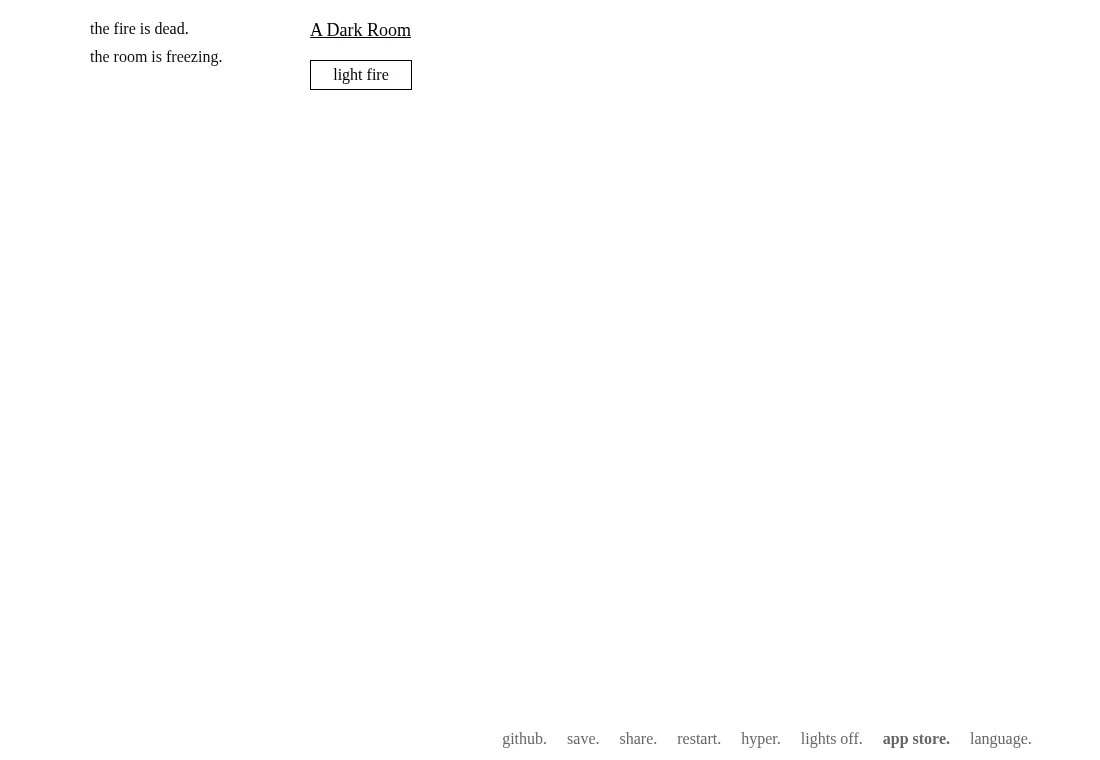
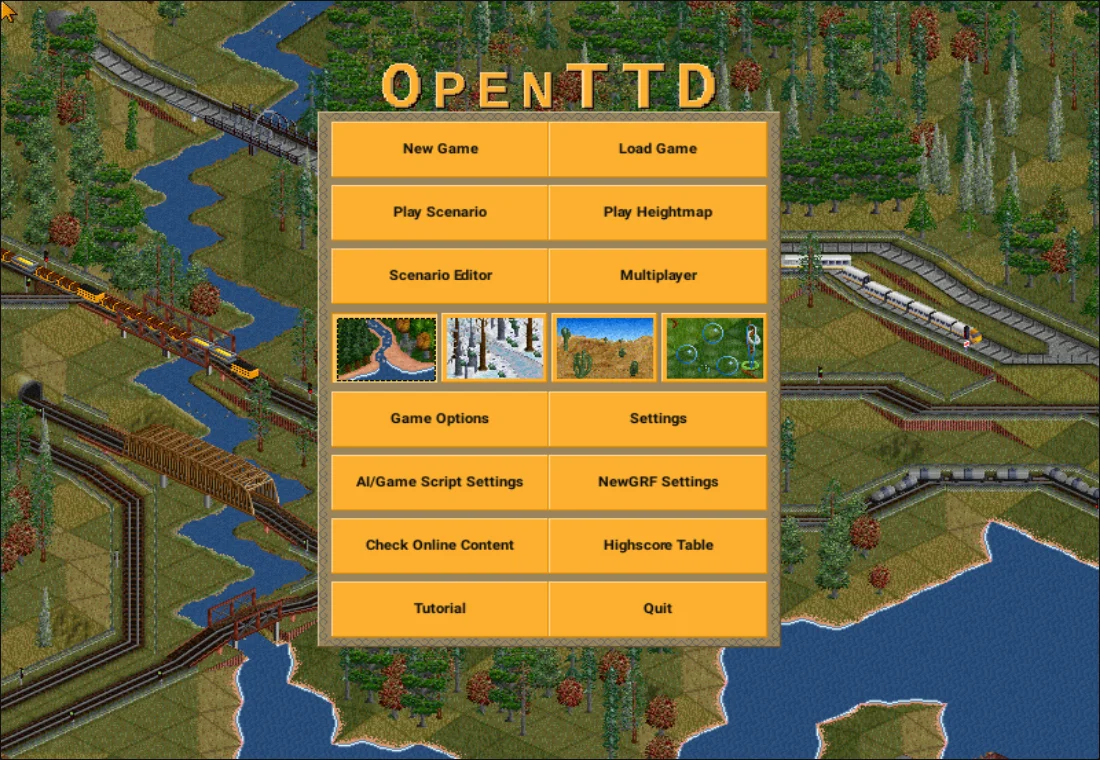
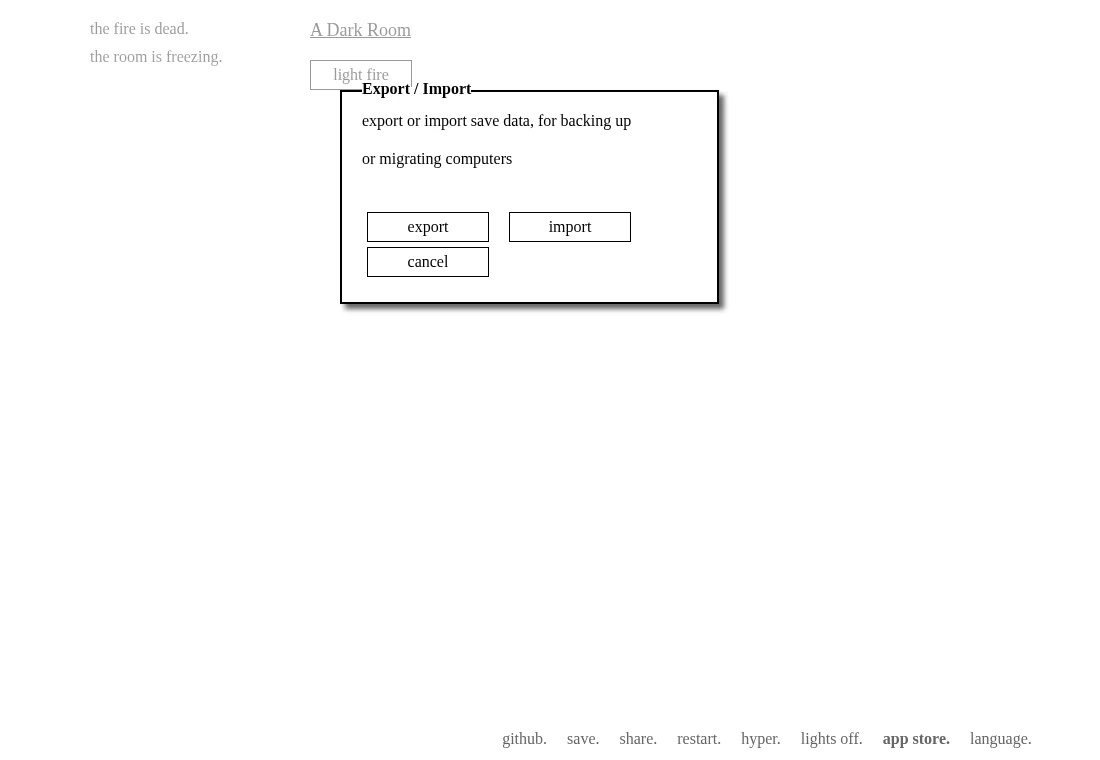
Browser games can keep state in localStorage, a downloaded file or an account on their host. 2048 stores its board and best score under the game’s origin when localStorage works. A Dark Room also uses local storage, but adds a save-code export. A transport simulation can have its own file workflow. Look for the actual control in the game you are using.
Export while the game still works
In A Dark Room, open the save menu and choose export. Keep the code in a separate file with the game address and date. For a game offering a downloadable save, retain the exported file. A screenshot of your score cannot reconstruct a board or campaign. Do not overwrite your only working backup while testing an import.

Keep the exact host and browser profile
Storage belongs to an origin. The original 2048 host, a fork on another domain and a local copy do not share one save automatically. An ordinary browser profile and a private session also have separate lifetimes. Return to the same address and profile before concluding that progress disappeared.
Move a save before deleting the old copy
When a game supports export and import, keep the source game unchanged, import on the destination and check the visible progress. Only then retire the old copy. The original 2048 has no normal export interface, so this method is not available for every entry.
Do a small save test early
Before investing in a long campaign, create a disposable game, use its save control, reopen it and check what returned. Avoid clearing site data as a first troubleshooting step. Private-browsing storage is cleared when its private session ends, and blocked storage can leave a game with only an in-memory fallback.